
One workspace for canvas, browser, code, and review.
Divine keeps the worktree in one place while the surface changes. Canvas shows pages and blocks together, browser runs the real frontend route, code holds the source, and review walks the diff before merge.
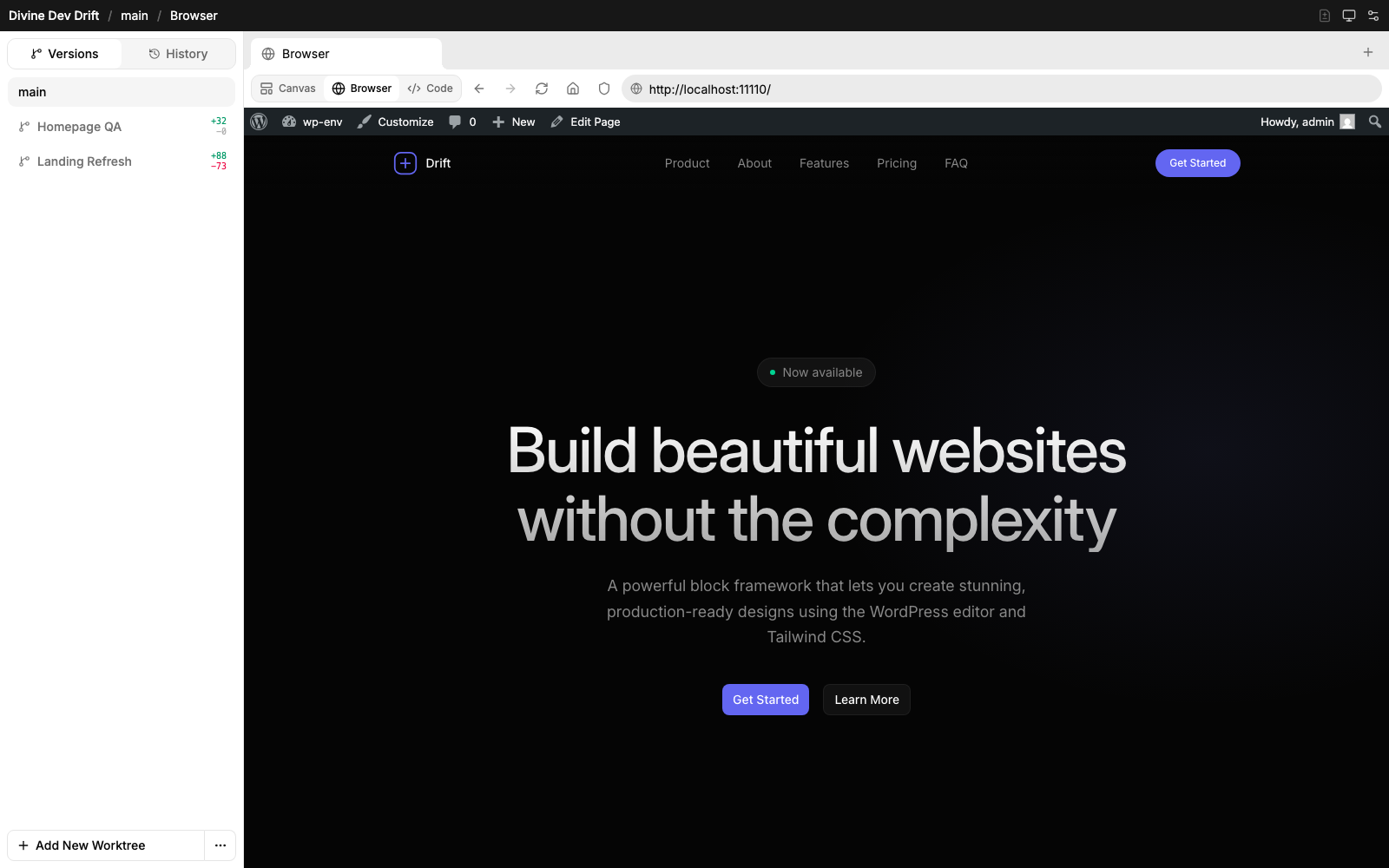
The workspace is a set of focused surfaces.
Each tab is deliberately narrow. The toolbar changes with the active surface, so controls stay close to the job they affect.
Canvas
Compare pages and blocks as rendered WordPress output, including responsive sizes and changed markers.
Browser
Use the live route for behavior that depends on the actual frontend runtime.
Code
Inspect the theme files behind a visual change without leaving the worktree.
Review
Move from preview to changed files and exact diffs when the worktree is ready.
History
Browse recent commits for the app or worktree and open per-commit file diffs.
Export
Package the app or a worktree as a standalone theme that runs without Divine.
Browser mode is for everything canvas cannot prove.
A rendered artboard is fast, but some changes need the actual frontend route. Browser mode keeps navigation, scripts, forms, links, and runtime behavior tied to the active worktree.
Real frontend URL
Open the worktree route as WordPress serves it, not as an isolated mock.
Interactions
Check links, buttons, scripts, and form states inside the same workspace.
Reload when needed
Browser controls stay available when runtime state matters.
Worktree aware
The browser follows the selected app and worktree instead of leaking back to the live theme.
Real WordPress under the iframe.
The browser surface is not a static render or a virtualized mock. Divine embeds the real WordPress frontend route inside the builder, with a request-scoped theme override that points at the active worktree.
Real PHP runtime
Pages render through the same WordPress, theme, and Blockstudio stack that serves your live site.
Real frontend URLs
Forms, links, scripts, and redirects behave the way they will on production.
Worktree theme override
A signed request context selects the worktree theme without changing the site’s persisted active theme.
Theme-only swap
The preview changes only the active theme for that request. Posts, options, and uploads stay the live site’s own data.
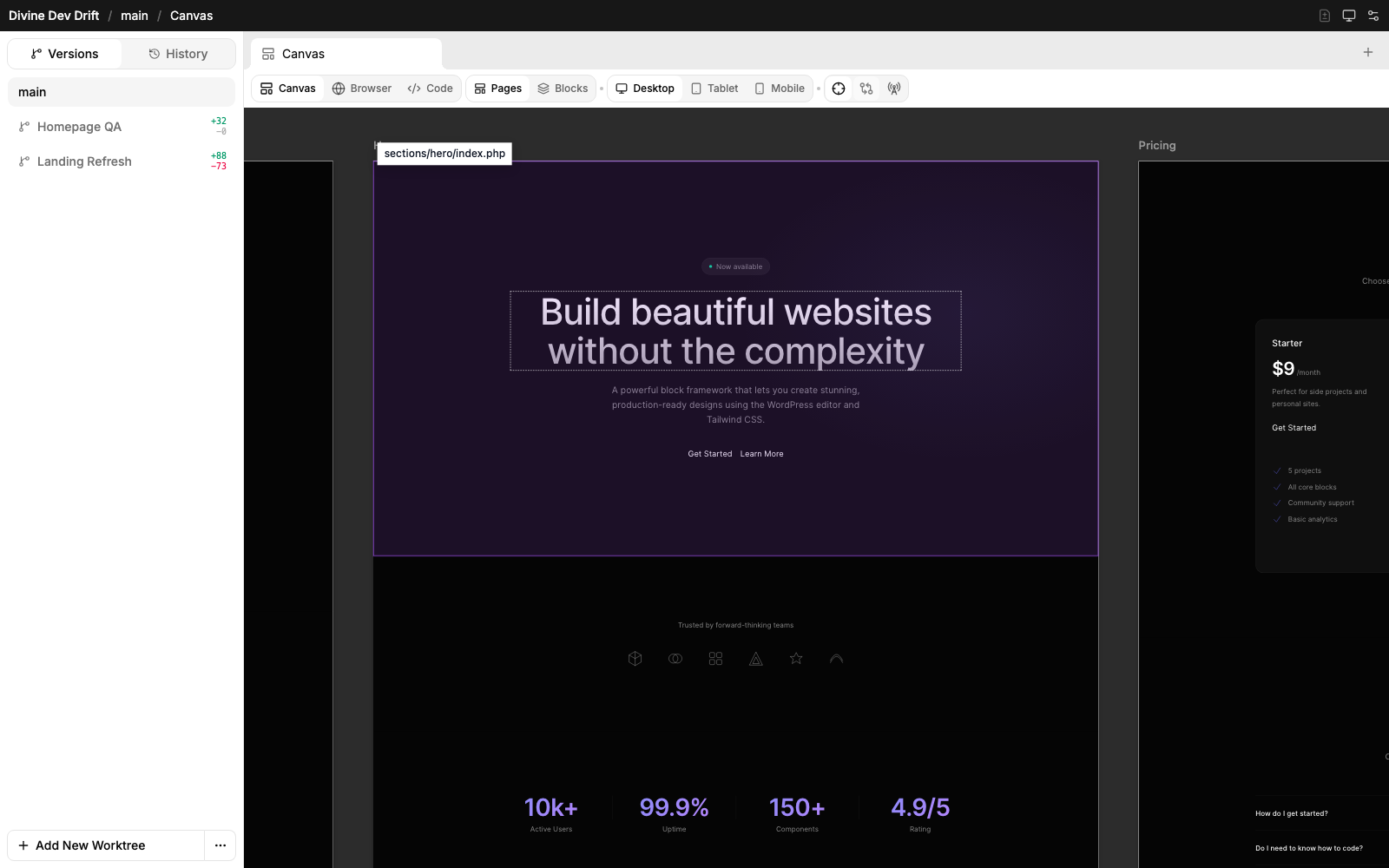
Turn a visual target into exact file context.
The grabber connects the rendered canvas back to source. Hover an element, see the template path, then copy the element and file context an agent needs to make the right edit.
That means no guessing from screenshots. The selected element is tied back to its PHP template, so an agent can move directly from visual feedback to the right source file.
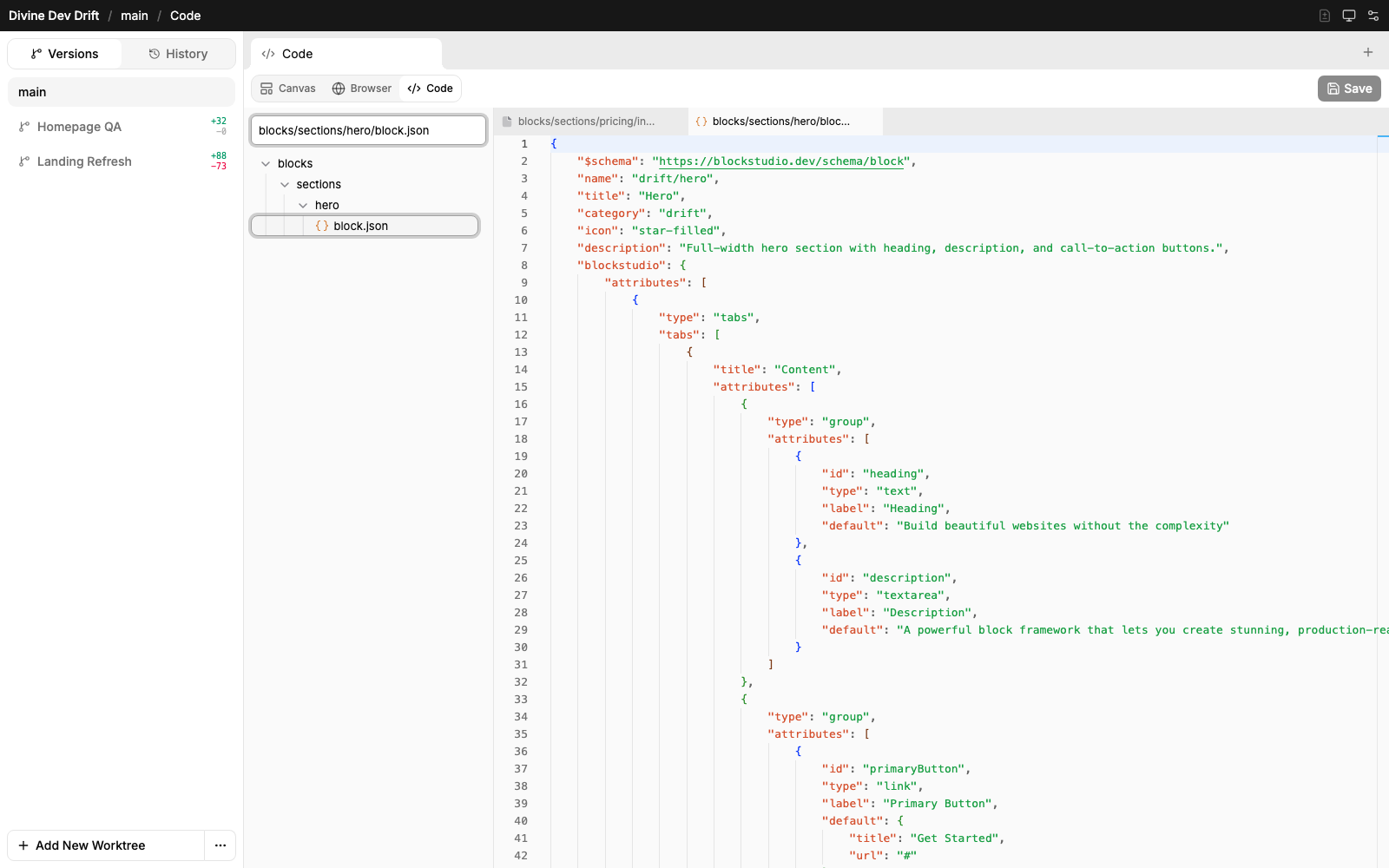
Open the block source beside the preview.
The code tab is not a separate developer mode. It is the same worktree, the same task, and the same app state with block files opened directly in the builder.
You don’t lose your place when you switch worktrees.
Divine keeps visited surfaces mounted and remembers view state, so switching apps, worktrees, and tabs does not reset the task every time.
Canvas position
Zoom and scroll state are stored per canvas source, so pages and blocks can keep their own view.
Open tabs
Workspace tabs preserve code files, browser state, and active surfaces.
Scoped toolbars
Only the active surface exposes its controls, which keeps the chrome compact.
App switching
Visited Divine apps stay warm instead of repainting a blank workspace on return.
Keep every view of the task in one builder.
Visual, runtime, source, and review stay connected to the same worktree.